in Releases
What’s new in v2.3

VRTs 2.3 lets you add custom CSS and JavaScript to each test. Keep a slider on the same slide for every screenshot without changing what visitors see.
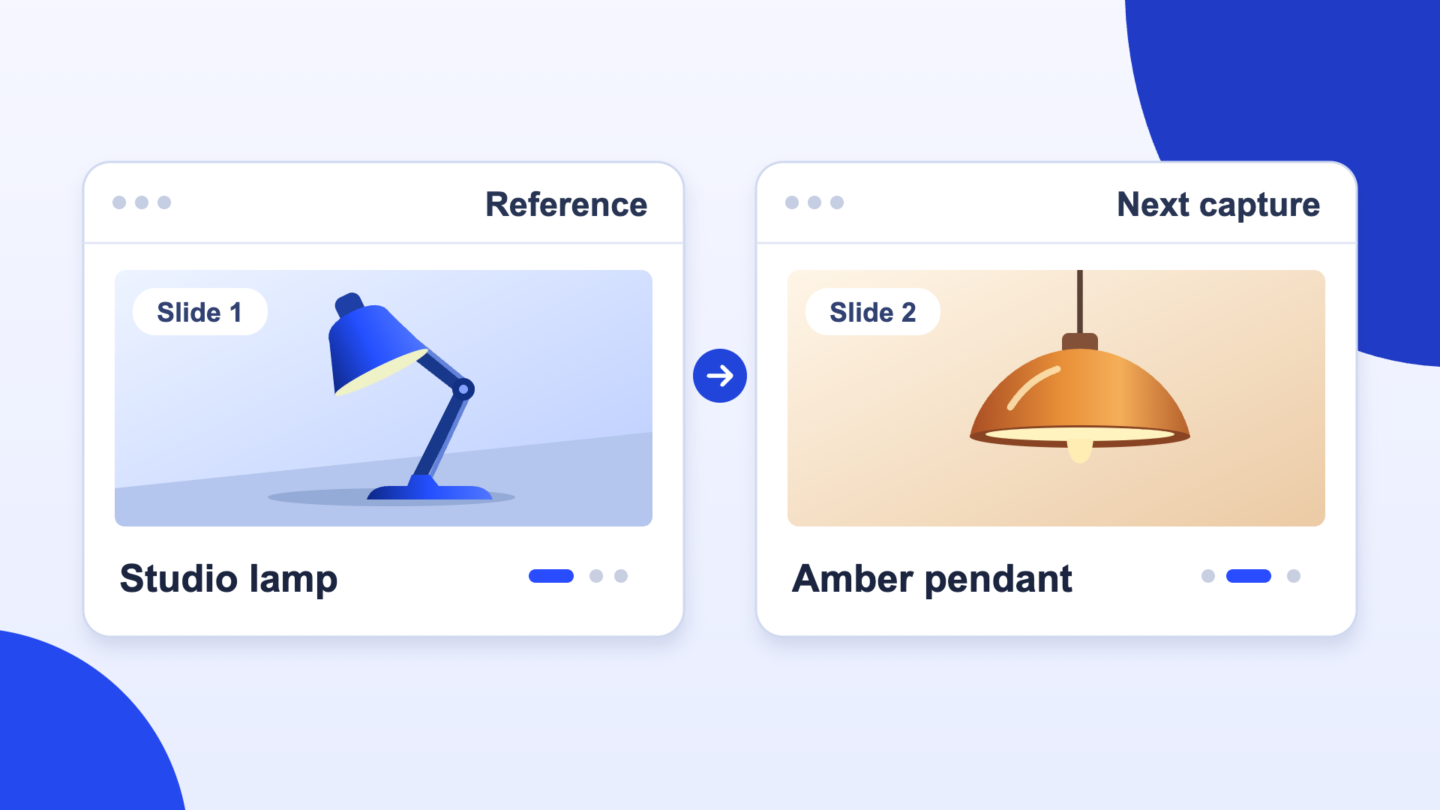
Test the slider, not the timing
Yesterday’s screenshot showed the blue desk lamp on slide one. Today’s shows the amber pendant on slide two. The page hasn’t changed, but the carousel advanced before VRTs took the screenshot.
With per-test JavaScript, you can stop autoplay and select the first slide before each capture. If the desk lamp image breaks, you’ll still see the difference. Visitors still see the carousel in motion.
Set up a repeatable screenshot
In an alert, open Test settings in the toolbar. If you don’t have an alert open, go to VRTs → Tests, find the page and click the sliders icon in the Settings column.
To get help writing the code, click the prompt under Ask your AI agent to copy it.
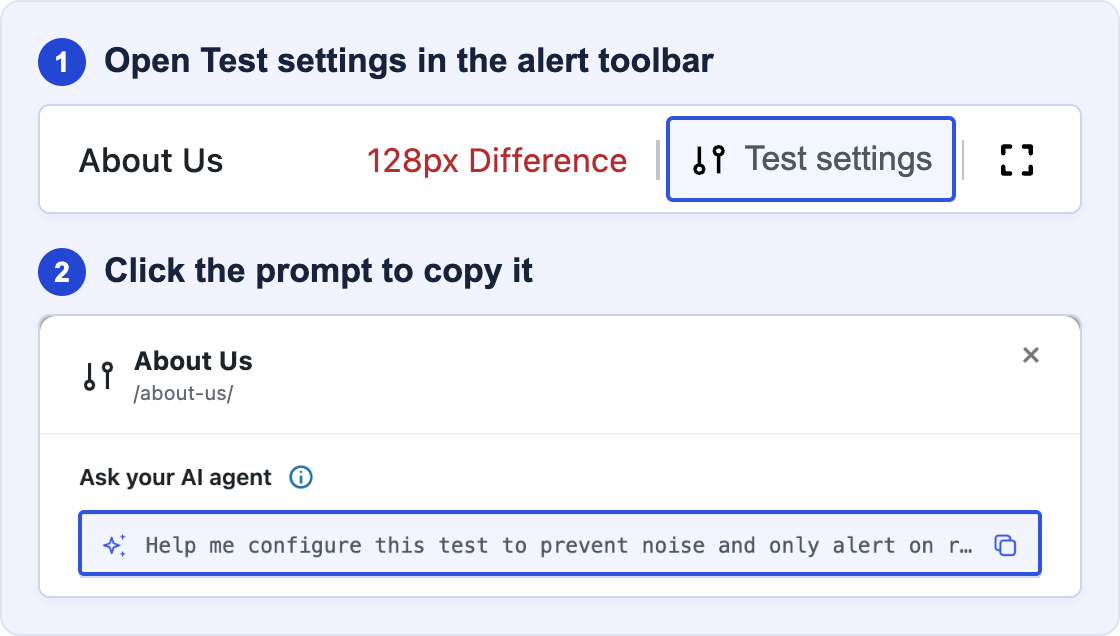
Paste the prompt into your own AI agent. It includes the page URL, your current test code and, when available, links to recent screenshots and captured HTML.
Back in Test settings, paste CSS into style.css or JavaScript into script.js. For a Swiper carousel with loop mode off, this script stops autoplay and selects the first slide. Replace .featured-slider with the selector for your Swiper container:
const slider = document.querySelector('.featured-slider')?.swiper;
slider?.autoplay?.stop();
slider?.slideTo(0, 0);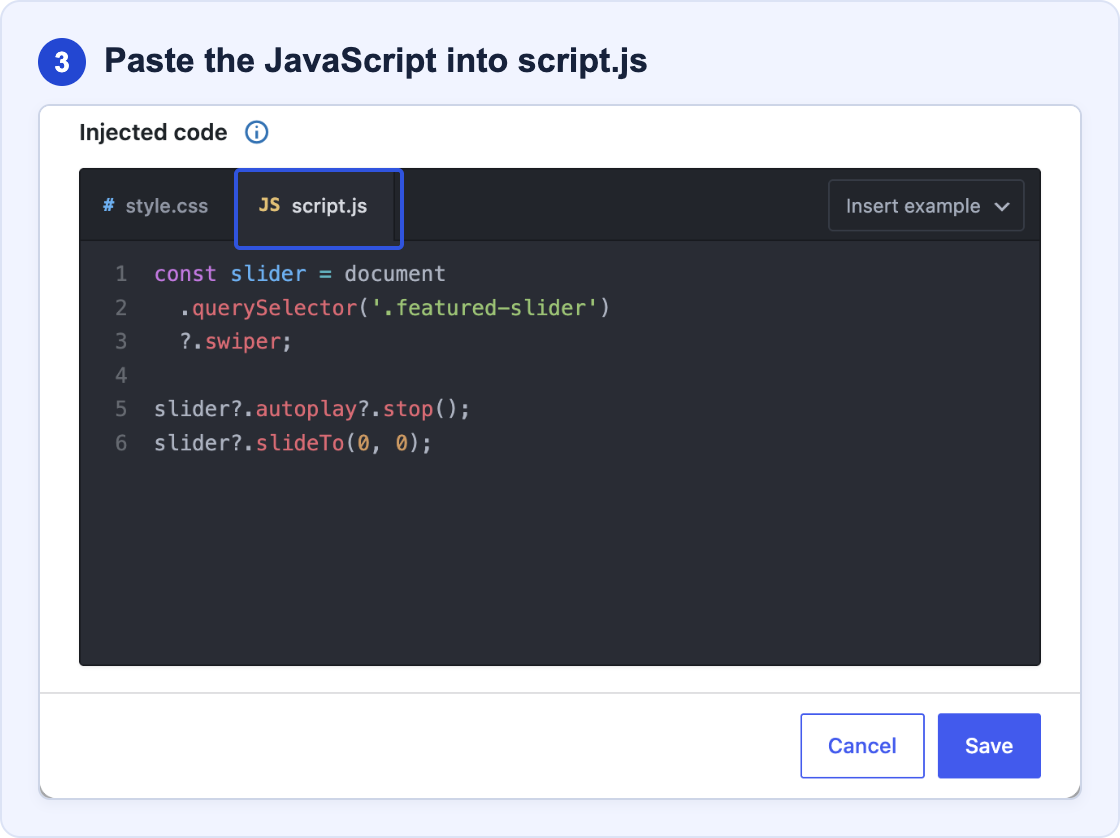
Click Save, then check the new reference snapshot. Is the first slide visible, with the image and headline you want to monitor? Future runs compare against that reference. See the test settings guide for more examples.
What changes for existing tests?
Hide Elements: Your existing selectors still work. You’ll find them as CSS in Test settings.
False positives: You can no longer flag an alert as a false positive. VRTs still suppresses matches for alerts you flagged before the update.
Alert threshold: The threshold now applies site-wide. You can adjust it under VRTs → Settings.
Send alerts to another tool (Pro)
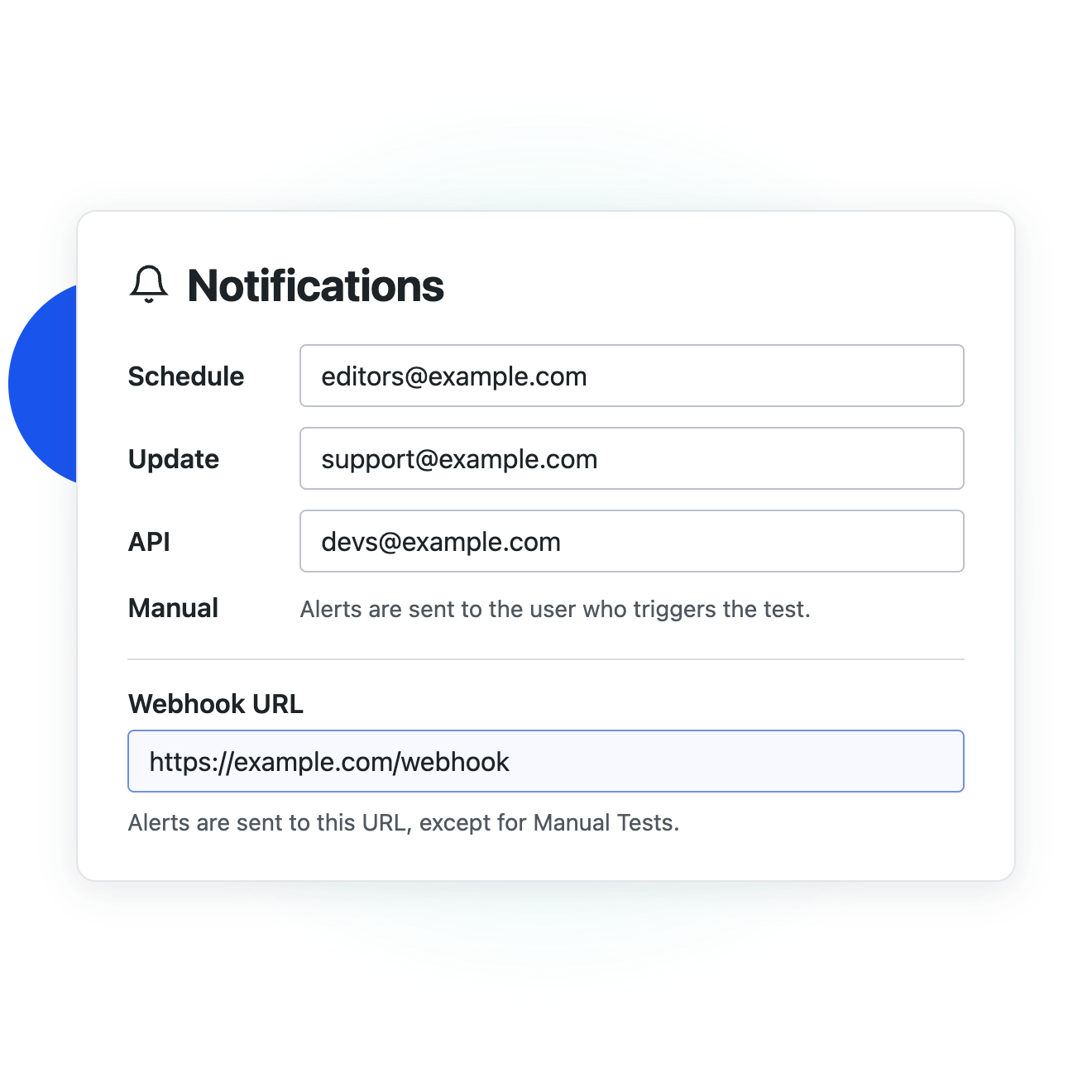
Enter your endpoint in the Webhook URL field under VRTs → Settings and save. When a scheduled, update or API run finds changes, VRTs sends the run and its alerts to that URL. Manual runs and runs without alerts don’t trigger a webhook.